A second marker cannot be added
The current editor supports one annotation of each type per step. Reposition the existing marker or use another step.
DemoFast tutorial
Place one click marker and one textbox on a captured step, then adjust their position and appearance in the editor.

Before you begin
Step by step
Choose the relevant thumbnail in the Steps sidebar and confirm the target control is visible.
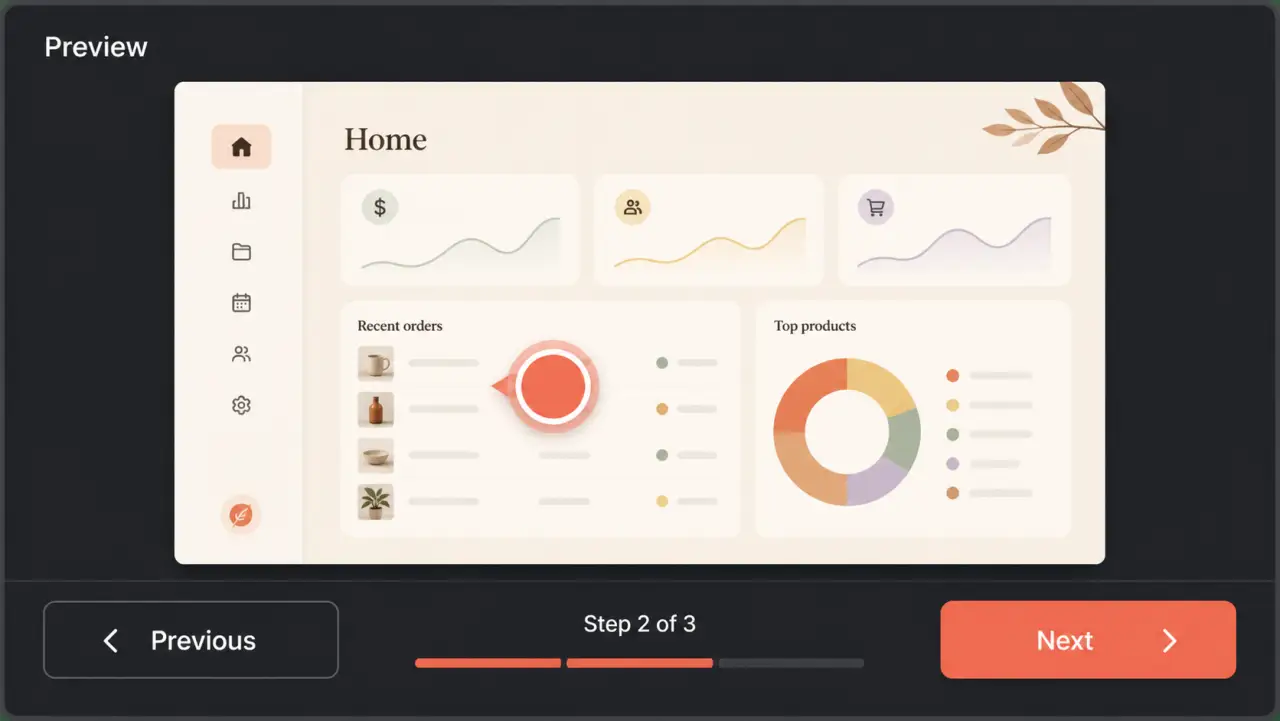
Choose Click Marker in the annotation toolbar. Drag the marker over the control the viewer should use.
Choose Textbox, enter concise guidance in its settings, and place it near—but not over—the important interface.
Select the marker or textbox to edit its available settings, position, and styling.
Save the demo, then preview the step to confirm the marker and guidance remain clear at player size.
Troubleshooting
The current editor supports one annotation of each type per step. Reposition the existing marker or use another step.
Shorten the copy and move the textbox into unused screen space.
Related product guide
Review annotation strategy and practical use cases.