Tutorial01
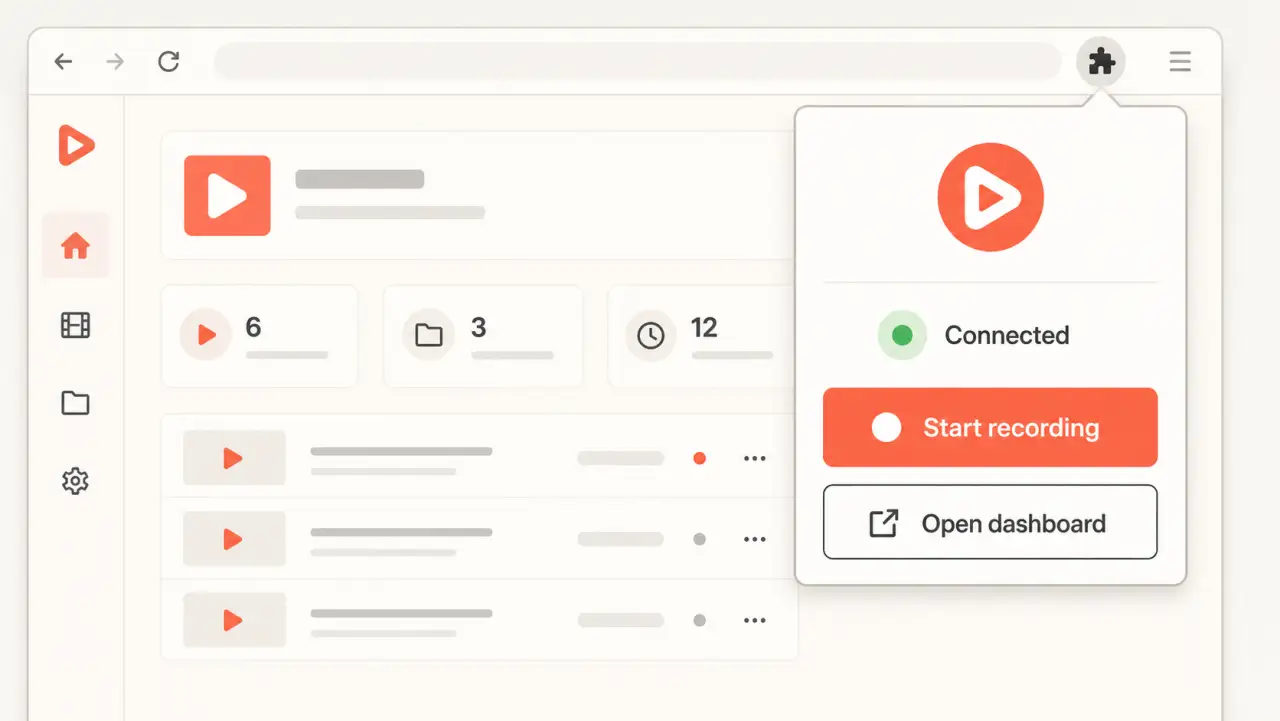
Install and connect the DemoFast Chrome extension
Install the current Chrome extension, connect your DemoFast account, and select the workspace where new recordings should be saved.
Follow tutorial ↗DemoFast tutorials
Practical guides checked against the current DemoFast app and browser extension. Generated interface visuals are labeled illustrative; instructions follow available product behavior.
Install the current Chrome extension, connect your DemoFast account, and select the workspace where new recordings should be saved.
Follow tutorial ↗Capture a short browser workflow with automatic steps, pause when needed, and save the finished recording to your workspace.
Follow tutorial ↗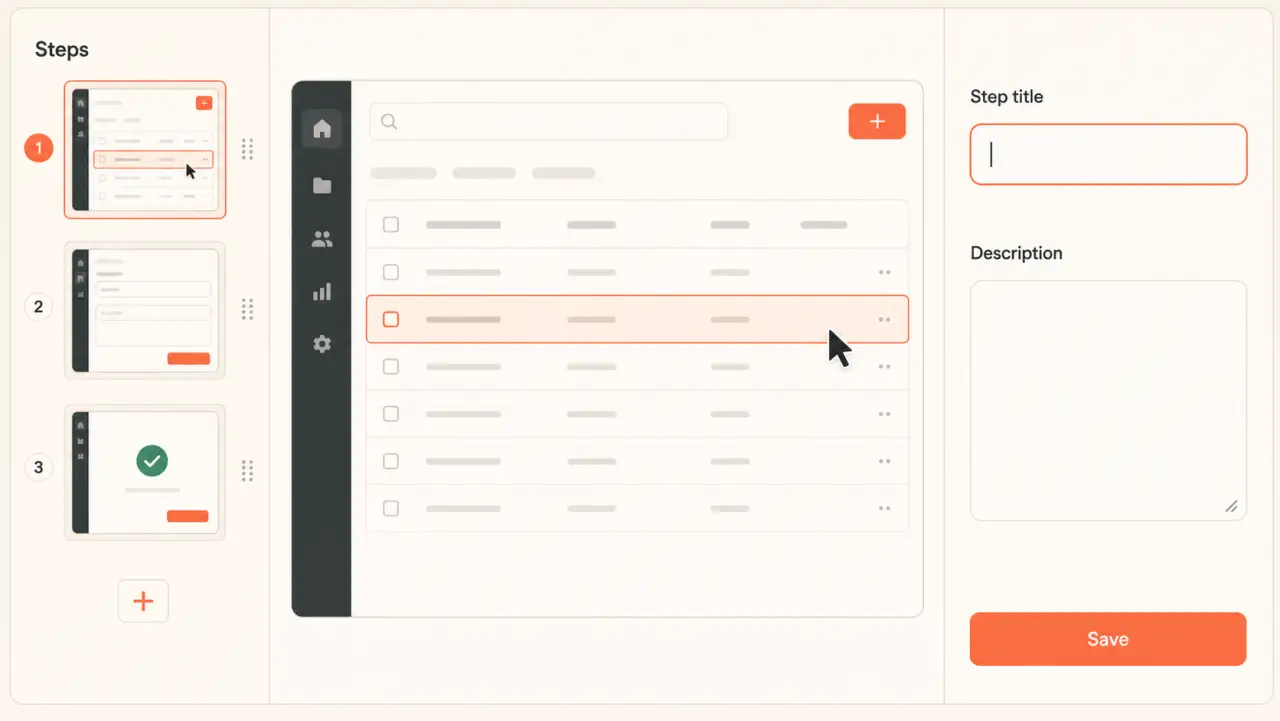
Review a captured sequence, reorder useful steps, remove mistakes, duplicate a screen, or add a missing image step.
Follow tutorial ↗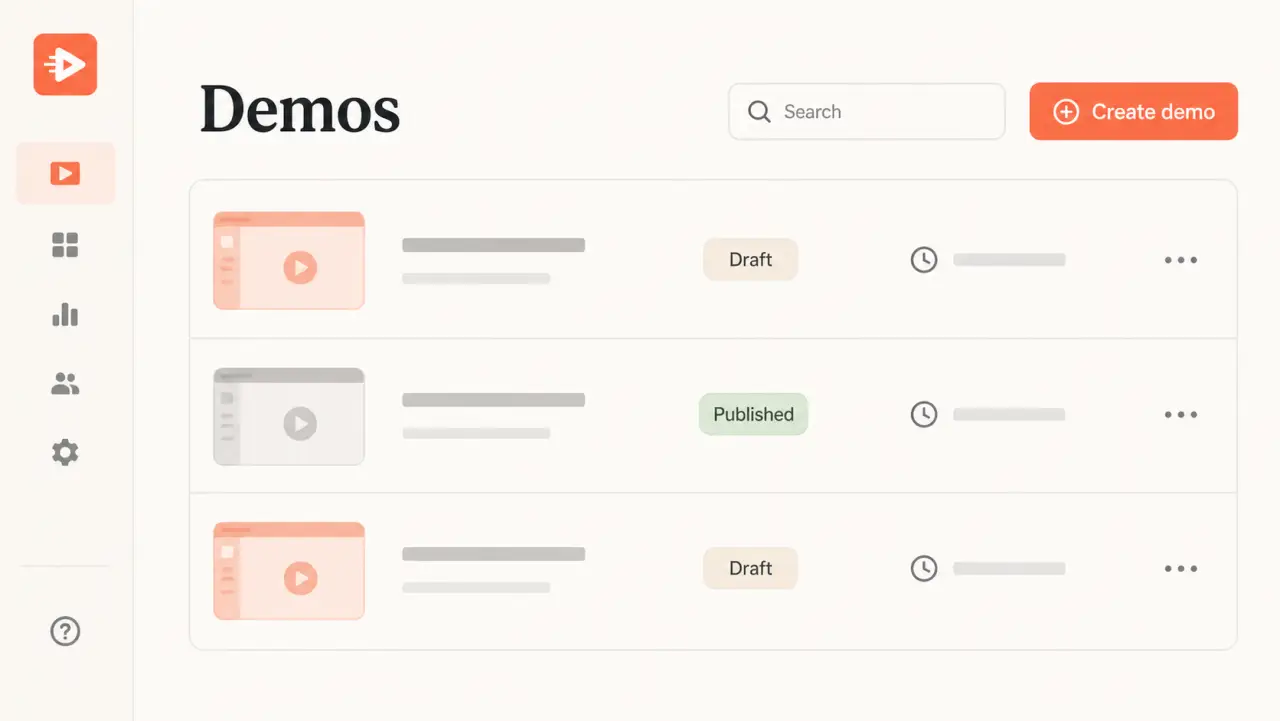
Rename a demo from the dashboard and replace an automatically generated step description from the owner preview.
Follow tutorial ↗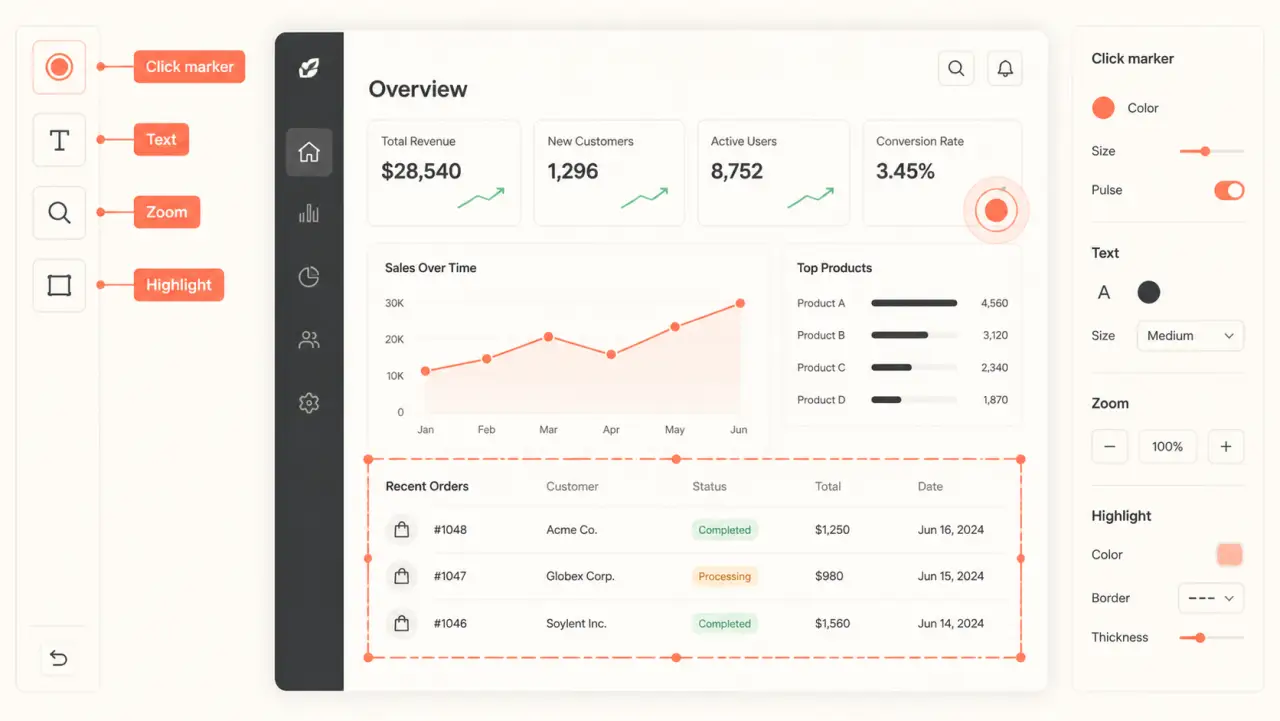
Place one click marker and one textbox on a captured step, then adjust their position and appearance in the editor.
Follow tutorial ↗Direct attention to a dense interface with a resizable custom area or a single zoom area on the selected step.
Follow tutorial ↗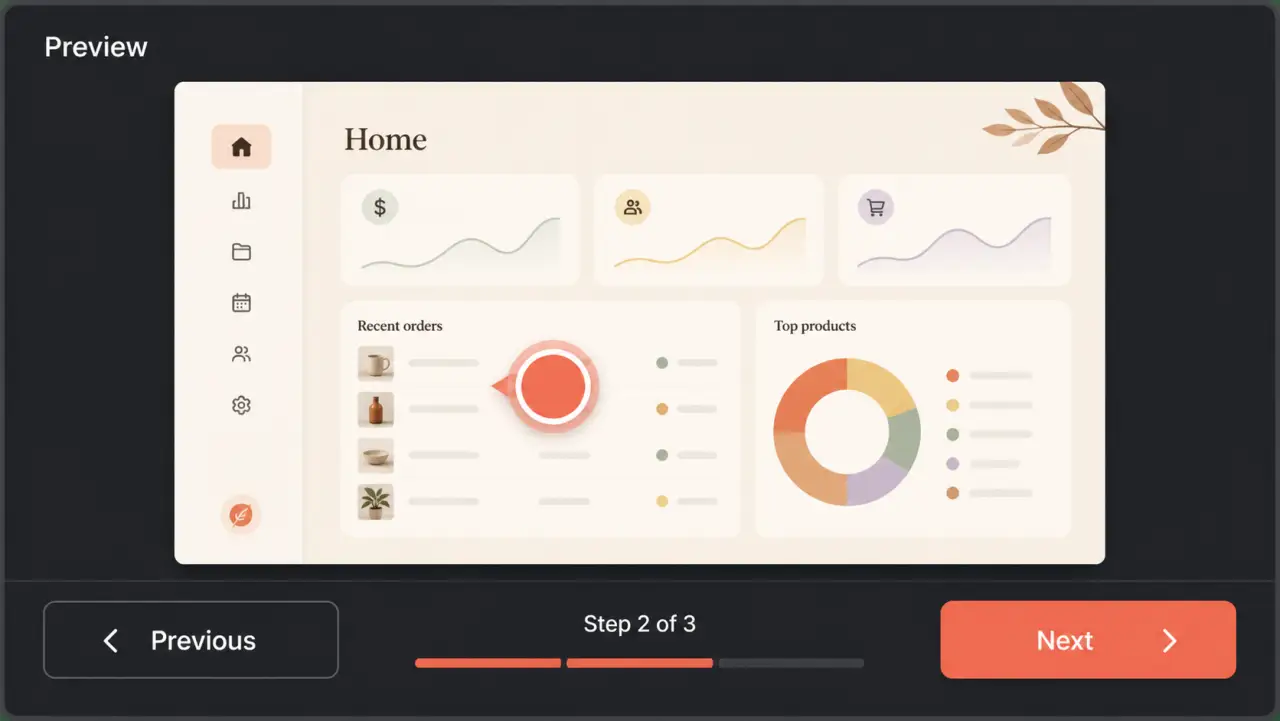
Save the current sequence, inspect it in the authenticated preview, make it public, and copy a viewer link.
Follow tutorial ↗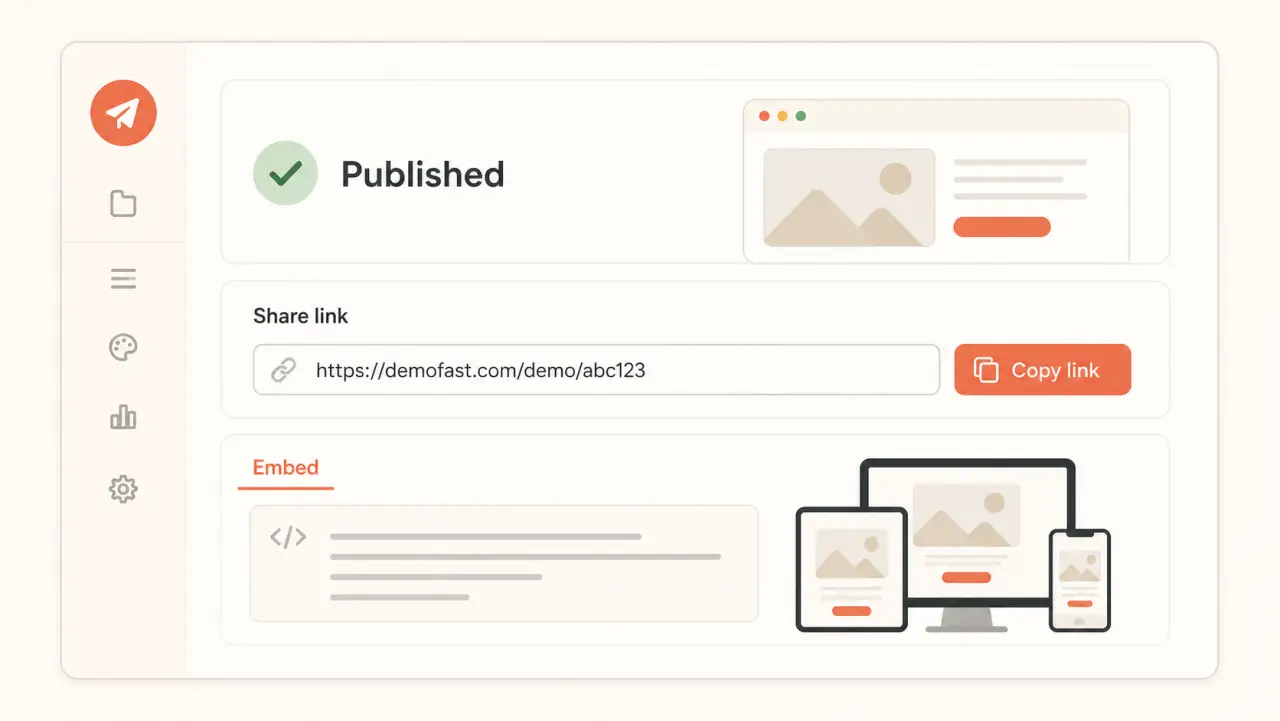
Publish a demo, copy the current iframe code, and place it in a responsive page container with accessible context.
Follow tutorial ↗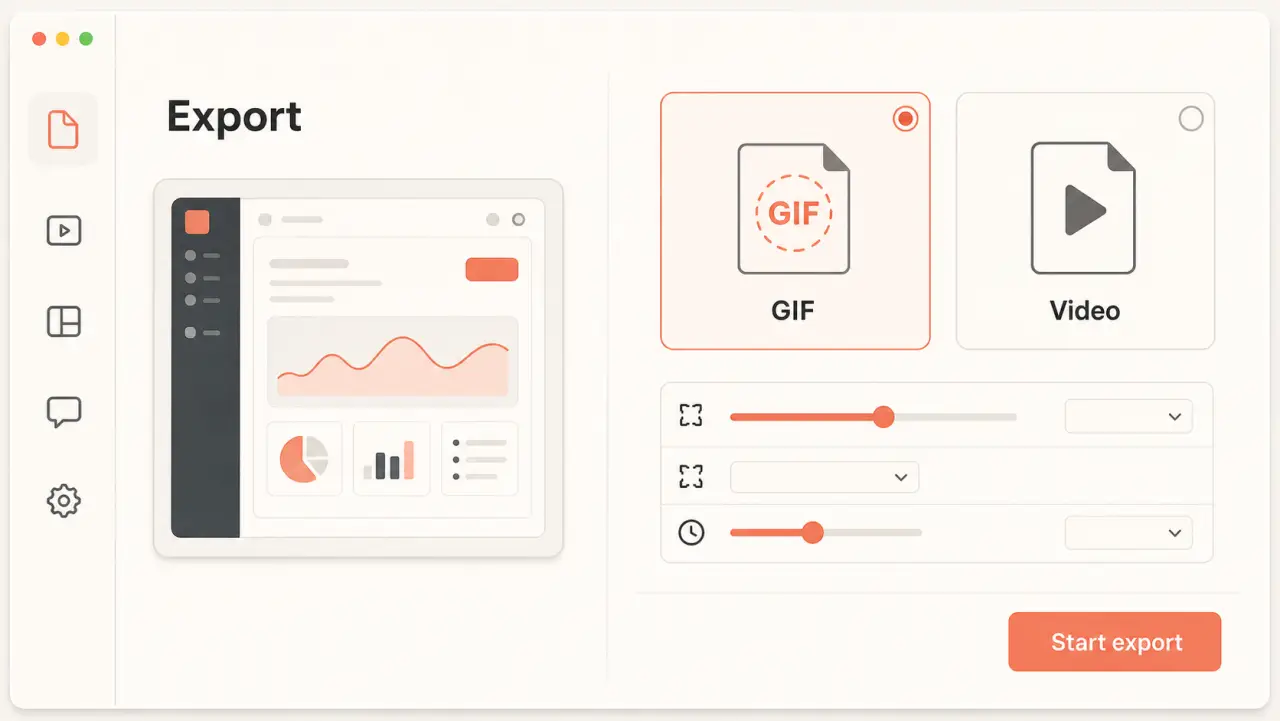
Render a finished walkthrough in the browser as a GIF or WebM video, adjust the available settings, and download the completed file.
Follow tutorial ↗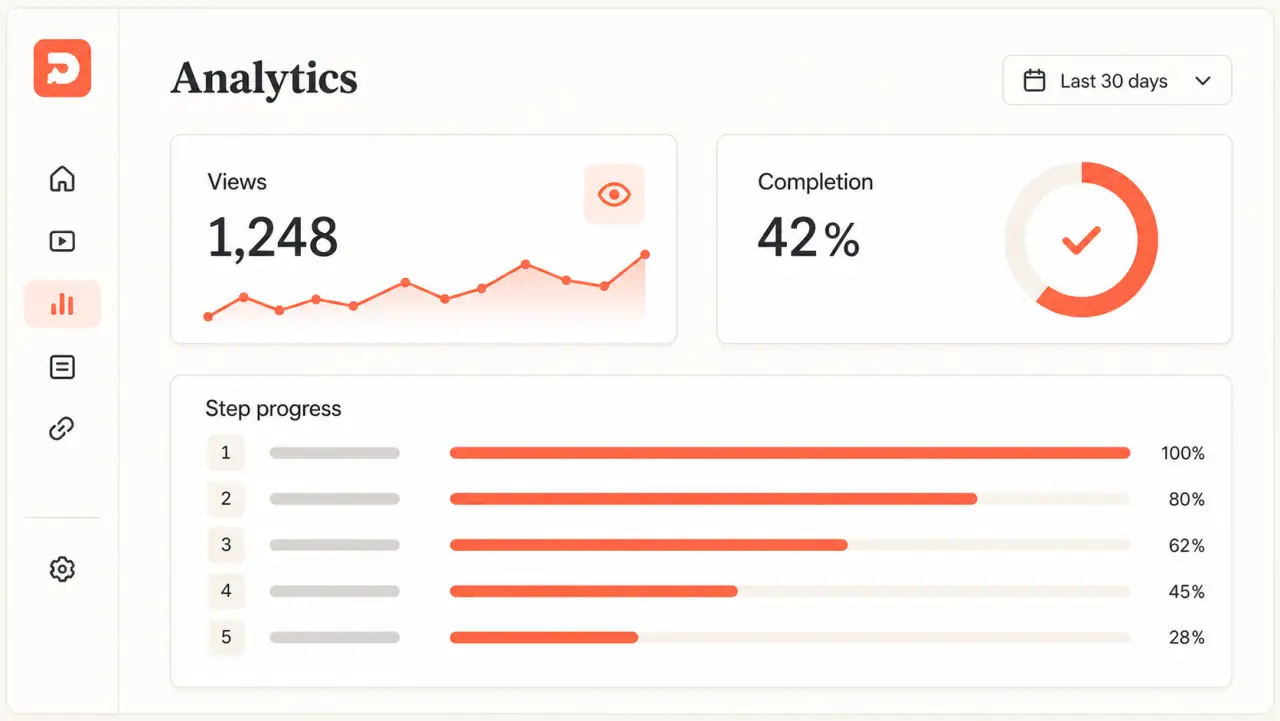
Choose a demo, set a date range, and interpret views, visitors, completions, and step-level progression without overreading a small sample.
Follow tutorial ↗