A step cannot be deleted
A demo must retain at least one step. Add or duplicate another step before removing the last one.
DemoFast tutorial
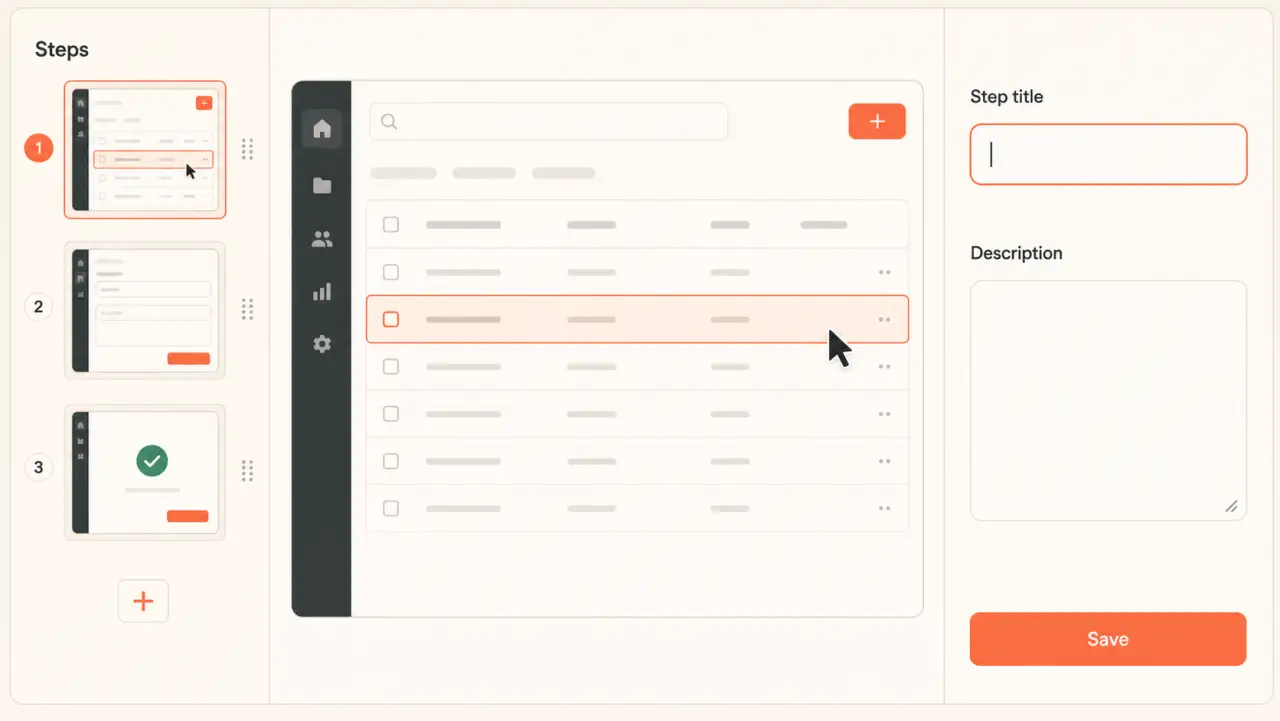
Review a captured sequence, reorder useful steps, remove mistakes, duplicate a screen, or add a missing image step.
Before you begin
Step by step
Open the demo from the dashboard. The Steps sidebar shows the captured sequence as thumbnails.
Drag a step thumbnail to its new position. The editor saves the reordered sequence.
Open a step's more menu to duplicate it or delete it. DemoFast keeps at least one step in the demo.
Use the add-step control in the sidebar and choose an image. The new screen is appended to the sequence.
Move through Previous and Next in the toolbar and confirm every step advances the intended story.
Troubleshooting
A demo must retain at least one step. Add or duplicate another step before removing the last one.
Remove setup and loading states that do not change what the viewer understands.
Related product guide
Plan a cleaner source workflow before recording.