The description edit control is missing
Confirm you are in the authenticated owner preview and have permission to edit the demo.
DemoFast tutorial
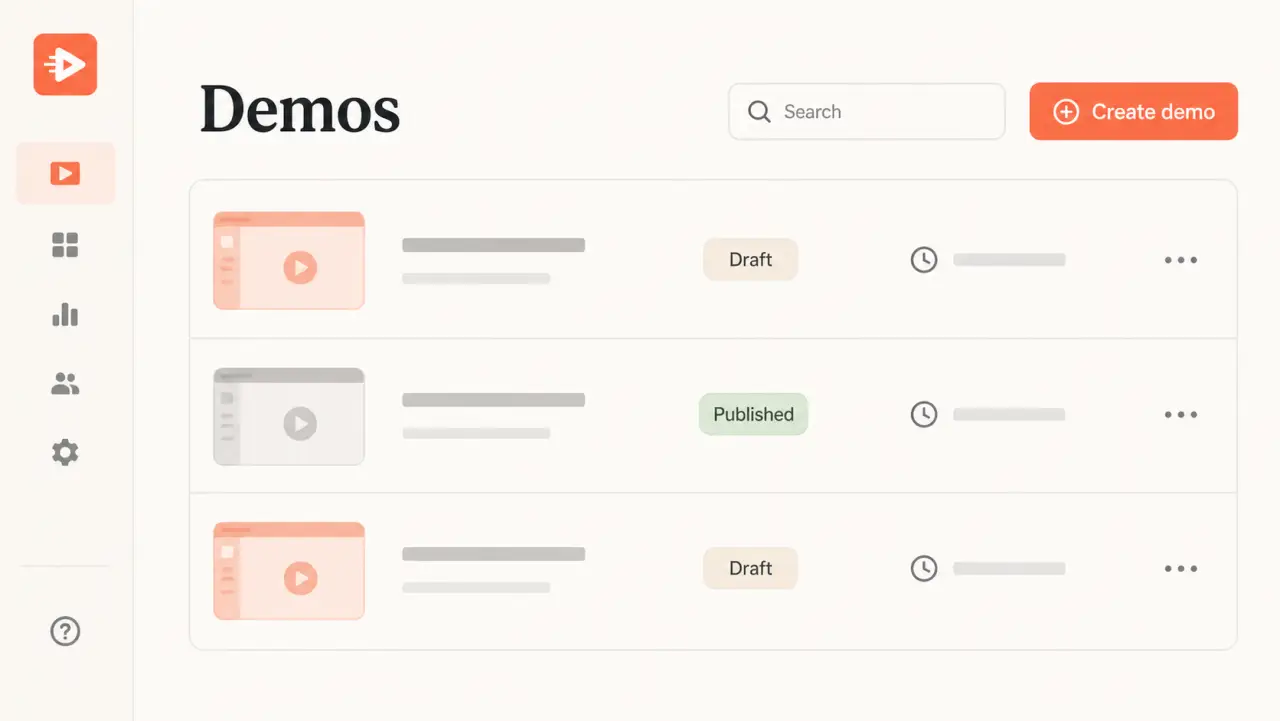
Rename a demo from the dashboard and replace an automatically generated step description from the owner preview.
Before you begin
Step by step
On the dashboard, open the demo's More actions menu, choose Rename, enter the new title, and save.
Open the editor and choose Preview. DemoFast saves current editor changes before opening the owner preview in a new tab.
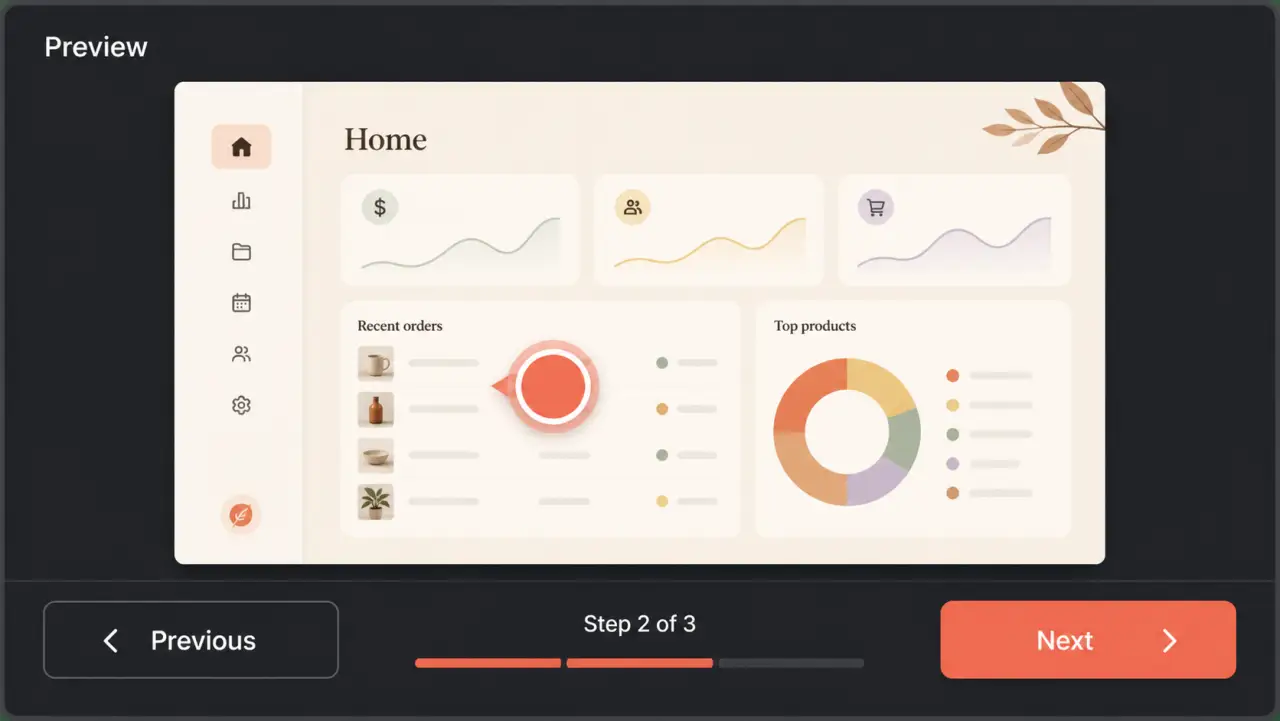
In the step list, use the pencil beside the description you want to replace.
Enter one concise action or outcome. Press Enter or use the save control; Escape cancels the edit.
For a previously customized description, use Reset to return to DemoFast's generated wording.
Troubleshooting
Confirm you are in the authenticated owner preview and have permission to edit the demo.
Explain why the viewer should take the action or what changes after it.
Related product guide
Add visual guidance when the step description is not enough.