The export does not start
Confirm the demo loaded successfully and includes at least one renderable step.
DemoFast tutorial
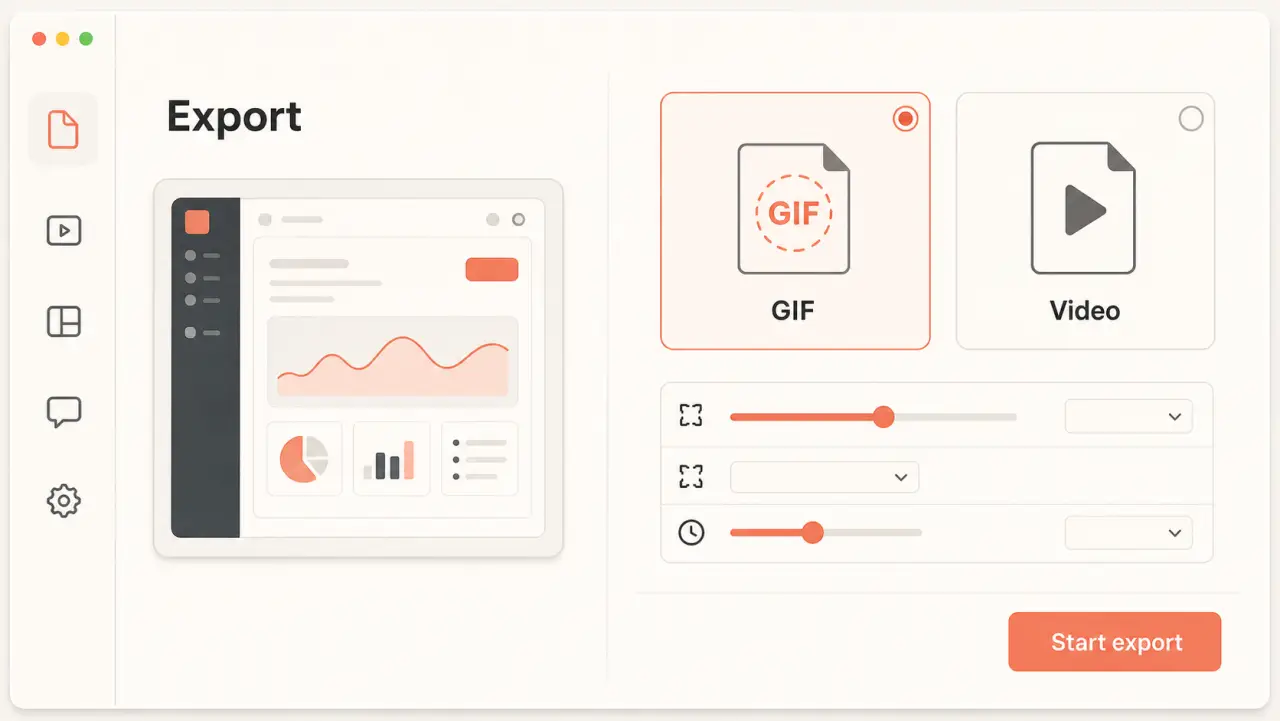
Render a finished walkthrough in the browser as a GIF or WebM video, adjust the available settings, and download the completed file.
Before you begin
Step by step
Open the Share panel from the dashboard or editor and find the Export section.
Select GIF for short looping assets or WebM Video for smoother, higher-resolution playback.
Choose an available resolution, frame rate, and step duration. Shorter demos export faster and produce smaller files.
Choose Start Export and keep the tab open while DemoFast renders each step and finalizes the file.
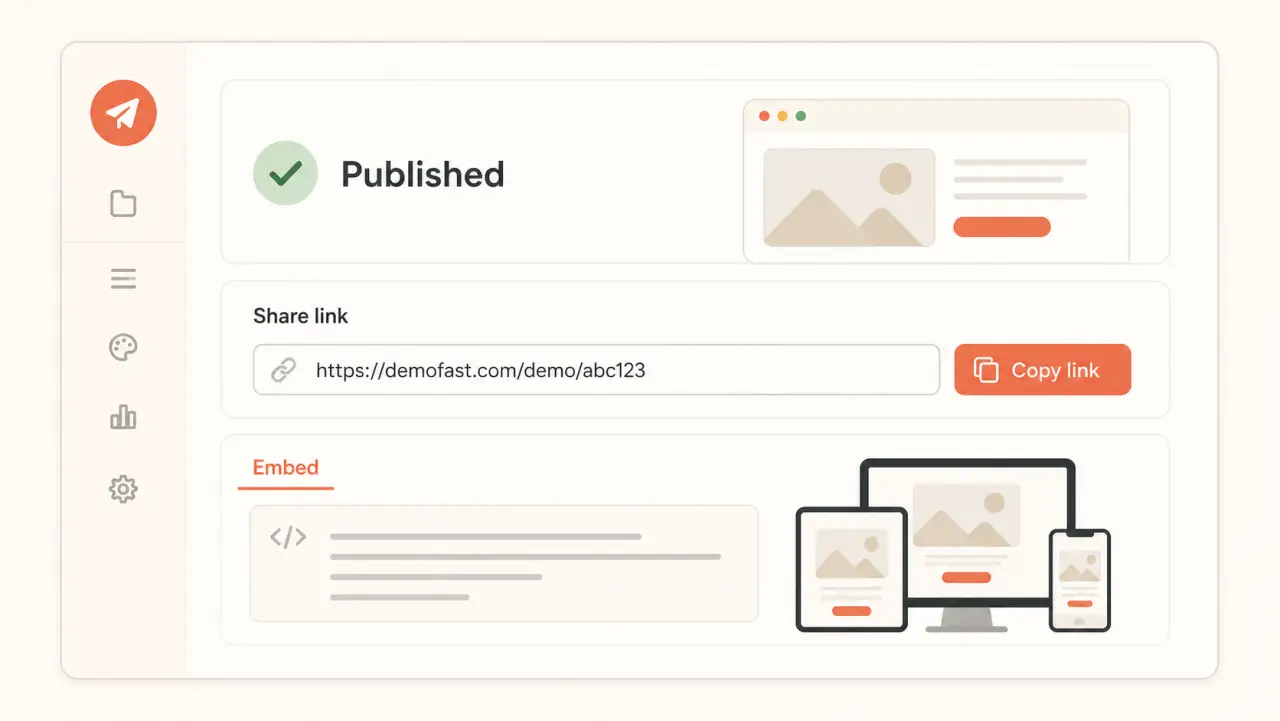
When the export reports Ready, choose Download. Use Export again if you need a different format or setting.
Troubleshooting
Confirm the demo loaded successfully and includes at least one renderable step.
Use the standard GIF size, a lower frame rate, shorter step timing, or choose WebM video.
Related product guide
Choose the right output for each distribution channel.