The public link shows a private warning
Return to the editor and confirm the visibility control says Public.
DemoFast tutorial
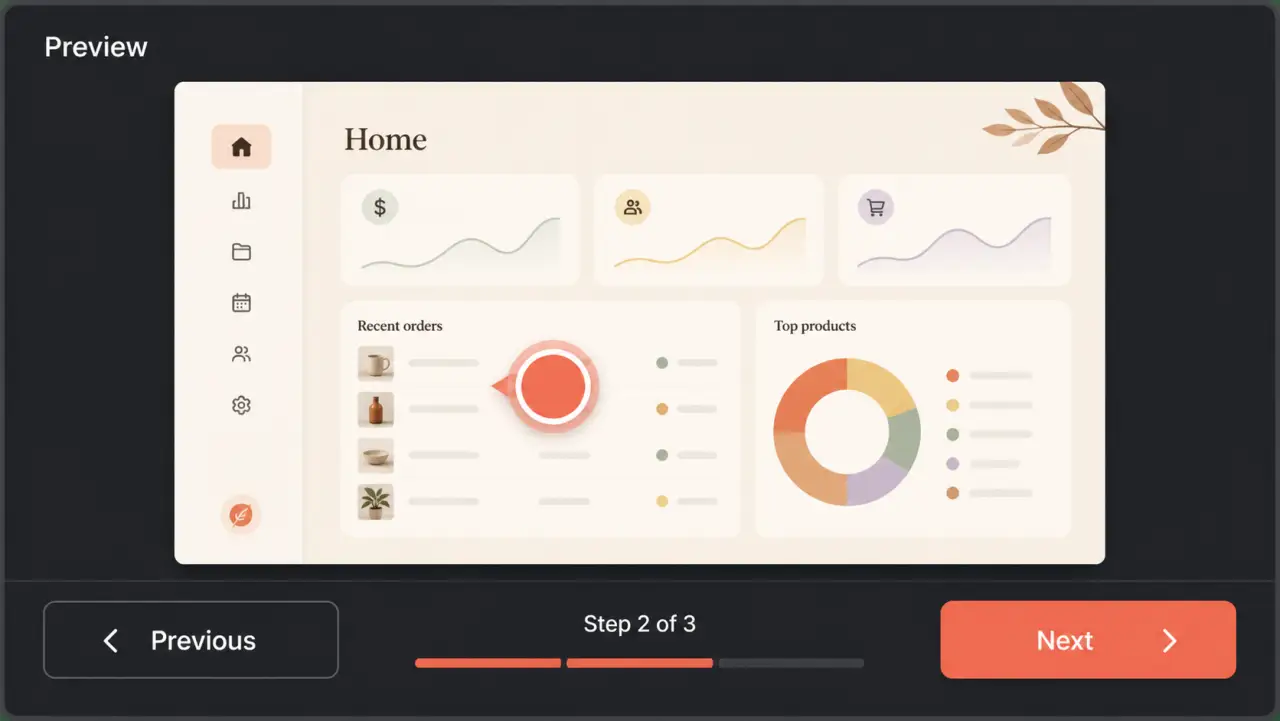
Save the current sequence, inspect it in the authenticated preview, make it public, and copy a viewer link.
Before you begin
Step by step
Choose Save and wait for the toolbar to confirm the latest steps and settings are saved.
Choose Preview. DemoFast saves first, then opens the authenticated preview in a new browser tab.
Use every marker, Previous and Next control, and step description. Check the first and final states.
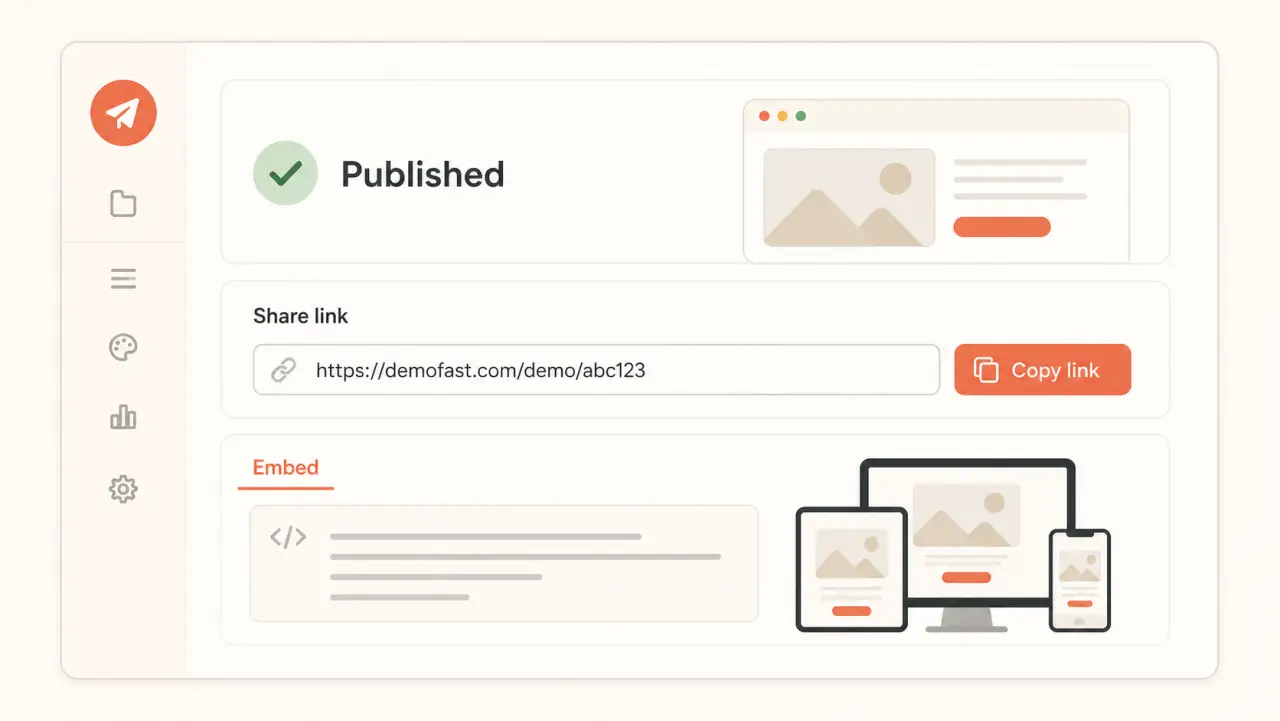
Return to the editor and use the Private/Public control to make the demo available to viewers.
Use Copy Link or open Share and copy the Share Link for the published demo.
Troubleshooting
Return to the editor and confirm the visibility control says Public.
Wait for the save confirmation, then refresh the preview tab.
Related product guide
Plan the viewer experience around a clear outcome.