A page does not record
Refresh the target page after installing or updating the extension. Chrome internal pages cannot be recorded.
DemoFast tutorial
Capture a short browser workflow with automatic steps, pause when needed, and save the finished recording to your workspace.
Before you begin
Step by step
Open the first screen, close unrelated tabs and notifications, and reset the product to a safe sample state.
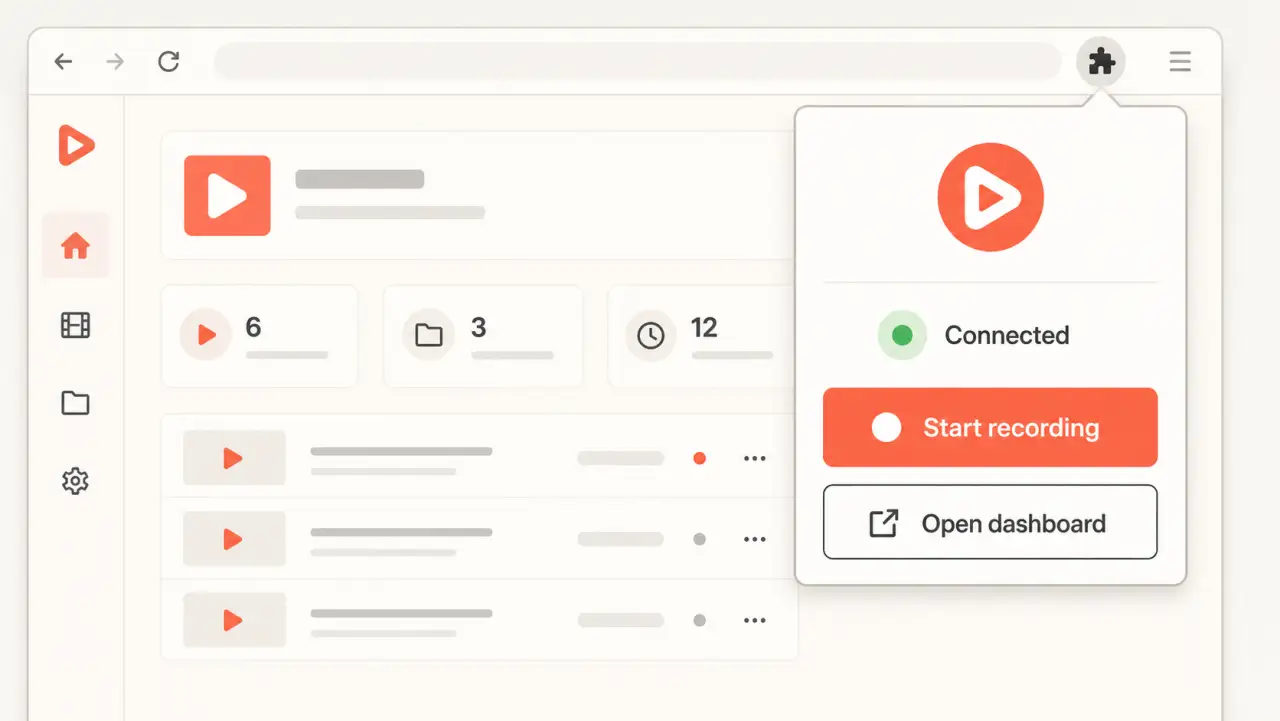
Open the extension, choose the destination workspace, and select Start Recording.
Click through the workflow at a steady pace. DemoFast captures interaction steps automatically; Pause and manual Capture controls are available during a recording.
Open the popup and choose Stop Recording. Keep Chrome open while the popup reports that it is saving the demo.
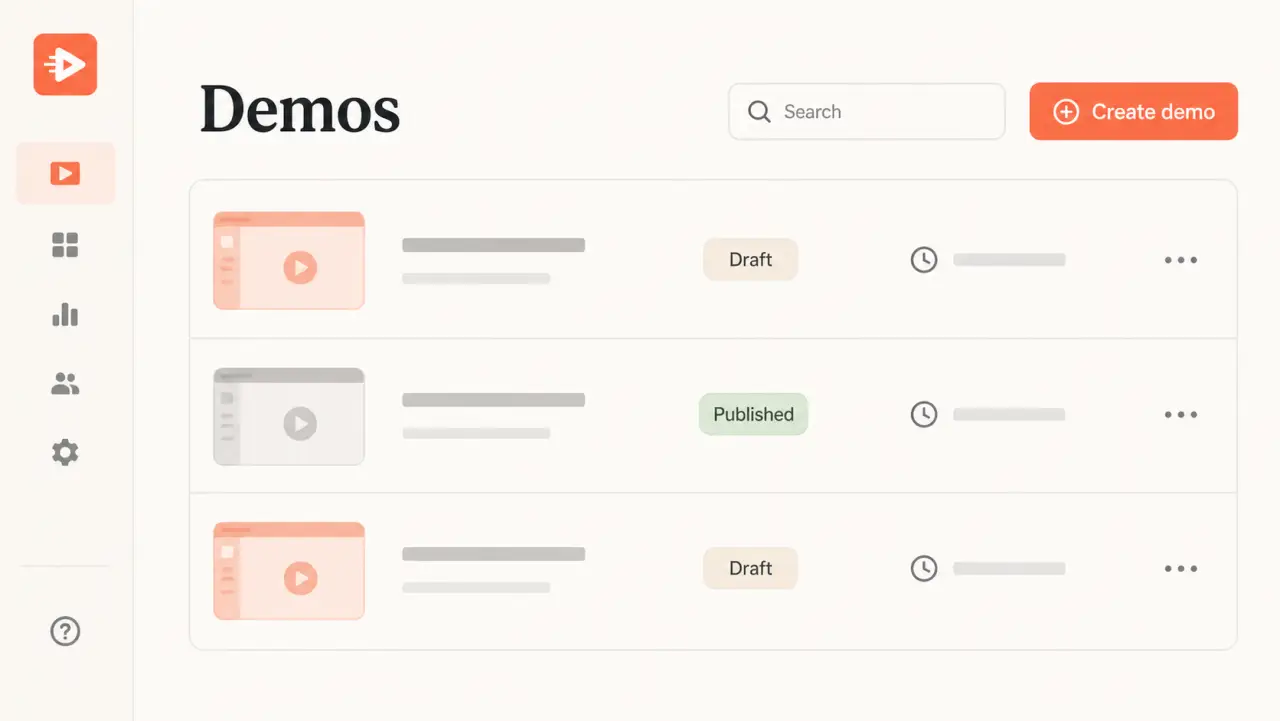
Return to the dashboard and open the new demo to review its captured steps.
Troubleshooting
Refresh the target page after installing or updating the extension. Chrome internal pages cannot be recorded.
Use manual Capture during recording, or add an image step later from the editor.
Related product guide
See how captured steps become a guided walkthrough.