Analytics are unavailable
Confirm the current plan includes analytics and that your workspace role can access them.
DemoFast tutorial
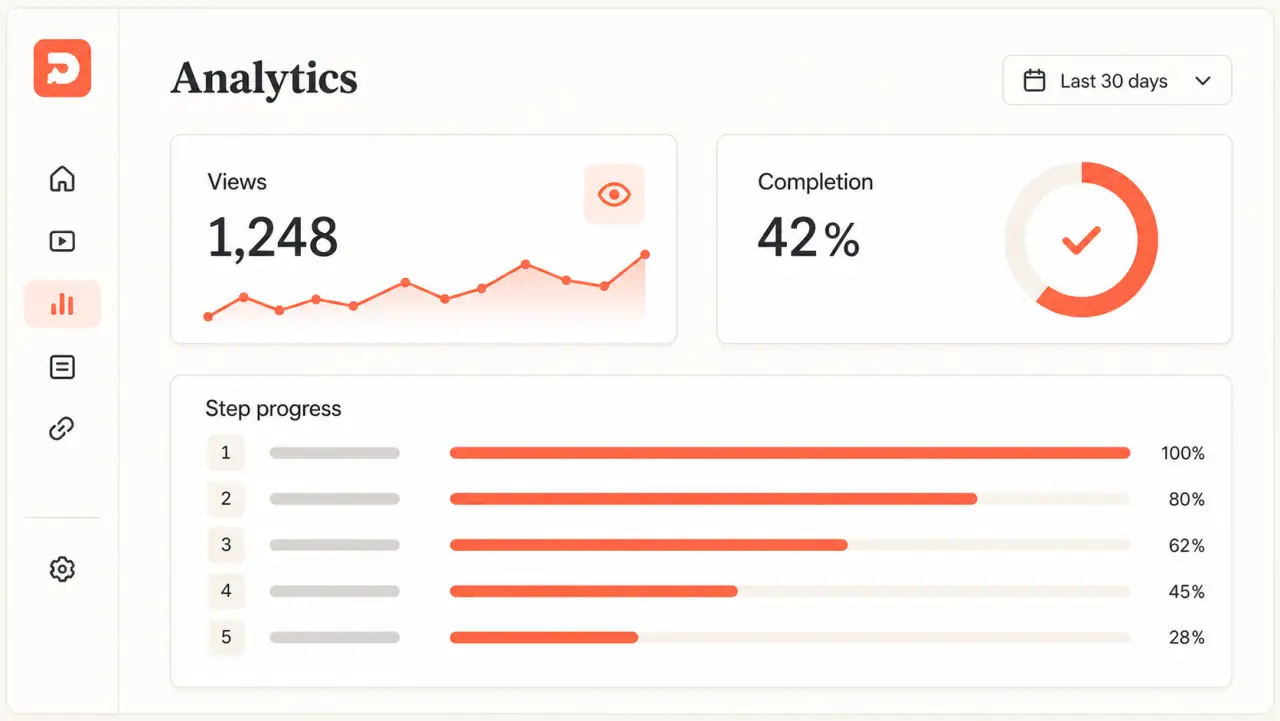
Choose a demo, set a date range, and interpret views, visitors, completions, and step-level progression without overreading a small sample.
Before you begin
Step by step
Use the app navigation to open Analytics, then select the demo you want to review.
Choose a start and end date that match the campaign, sales sequence, or page change you are evaluating.
Review Total Views, Unique Visitors, Completions, and the calculated completion rate in context.
Use the step breakdown to locate repeated exits, then inspect the corresponding screen and guidance before deciding why viewers left.
Revise one major variable—such as the opening step or placement—and compare a similar audience and time window.
Troubleshooting
Confirm the current plan includes analytics and that your workspace role can access them.
Check the selected demo and date range, then confirm the public link or embed has received traffic.
Related product guide
Define the outcome a walkthrough should be measured against.